

You already spend hours a day in WhatsApp. It is where your family, your team, and your clients reach you. So why do you switch to a separate calendar app every time you need to check your schedule, move a meeting, or book an appointment?
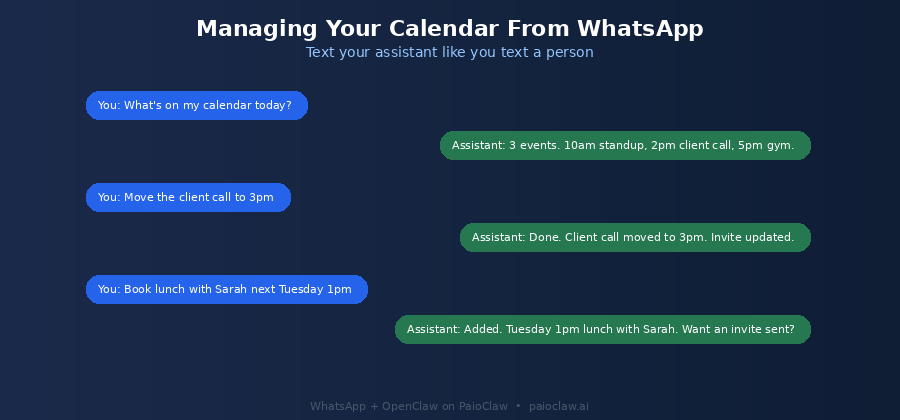
A WhatsApp AI assistant collapses that friction. You text it the way you would text a personal assistant: “What’s on today?”, “Move my 2pm to 4pm”, “Book lunch with Sarah next Tuesday”. It reads your calendar, makes the change, and replies in seconds. No app switching, no clicking through date pickers, no separate login.
This guide shows you how to build one using OpenClaw on PaioClaw, connected to your WhatsApp and Google Calendar. No coding required, and it works from any phone that has WhatsApp installed.
Why WhatsApp Is the Right Interface for a Personal AI Assistant
Most AI calendar tools fail for the same reason: they ask you to adopt a new app and change your habits. A personal AI assistant only works if it lives where you already are. For most people worldwide, that place is WhatsApp, with over two billion active users treating it as their default messaging layer.
When your assistant lives in WhatsApp, three things change. There is nothing new to open, because the conversation is already in your chat list. The interaction is natural language, so you type requests the way you think them rather than translating them into form fields. And because it is always in your pocket, you can manage your schedule from a taxi, a queue, or between meetings without ever opening a laptop.
What Your WhatsApp Calendar Assistant Can Do
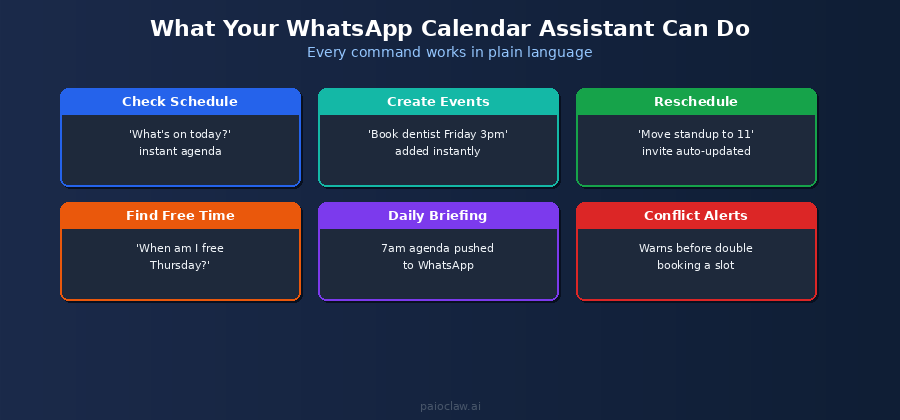
Before setting it up, here is the range of what a well-configured assistant handles through plain WhatsApp messages:
- Check your schedule: “What’s on today?” returns your agenda instantly
- Create events: “Book dentist Friday 3pm” adds it with the right time and title
- Reschedule: “Move standup to 11” updates the event and re-sends invites
- Find free time: “When am I free Thursday afternoon?” scans your calendar
- Recurring events: “Add gym Monday Wednesday Friday 7am” sets a repeating series
- Daily briefing: a morning agenda pushed to WhatsApp before you start your day
- Conflict warnings: alerts you before you double-book a slot
How It Connects
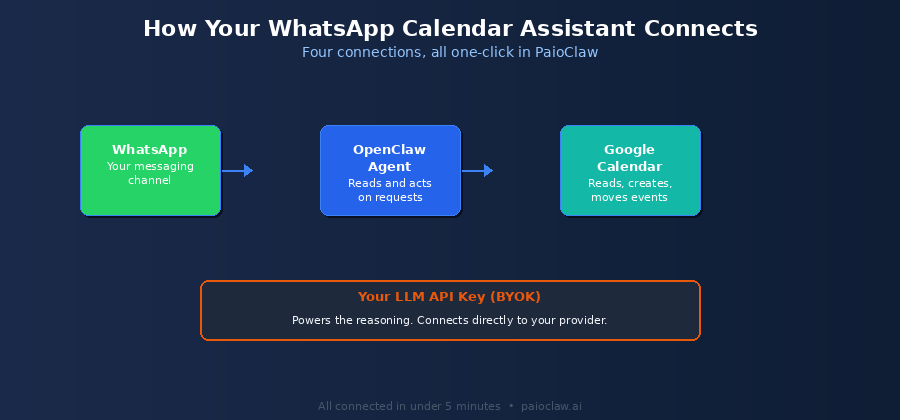
The assistant is the link between three things: your WhatsApp (where you send commands), your OpenClaw agent (which interprets and acts), and your Google Calendar (which it reads and updates). Your own LLM API key powers the reasoning, connected directly to your provider with no markup.
Step-by-Step Setup on PaioClaw
Step 1 – Create Your Assistant Claw
Go to paioclaw.ai and sign up for free. No credit card is required, and the free plan includes 60 AI credits per month, which is enough to run a personal calendar assistant for light daily use. Create a new Claw and name it something personal like “My Assistant” or “Calendar Bot”.
Step 2 – Connect Your LLM API Key
Go to AI Models in the sidebar and paste an OpenAI or Anthropic API key. PaioClaw uses your key directly with your provider, so there is no markup on token costs. For a calendar assistant, GPT-4o mini is more than capable and keeps costs to a few cents per day.
Step 3 – Connect WhatsApp
Go to Control > Channels and select WhatsApp. PaioClaw walks you through linking your WhatsApp account to your Claw. Once linked, any message you send to your assistant’s number is received and acted on by your agent. This is the same one-click channel setup PaioClaw uses for Telegram, Slack, and Discord.
Step 4 – Connect Google Calendar
Go to Agent > Skills and install the Google Calendar skill. Authorise it against your Google account. This gives your agent permission to read your events, create new ones, move existing ones, and check for free slots. This is a standard OAuth connection, so you can revoke access at any time from your Google account settings.
Step 5 – Configure Your SOUL.md
SOUL.md defines how your assistant behaves. For a calendar assistant, you want it to be concise, to confirm actions clearly, and to ask before doing anything destructive like deleting an event. Here is a working template:
# SOUL.md - Personal WhatsApp Calendar Assistant

## Identity

You are my personal calendar assistant. I message you via WhatsApp.

My name is [Your Name]. My timezone is [e.g. Europe/London].

My working hours are [e.g. 9am to 6pm, Monday to Friday].

## Behaviour

- Keep replies short. This is a chat, not an email.

- Always confirm the exact date, time, and title when you create or move an event.

- When I give a vague time ('tomorrow afternoon'), pick a sensible default

  and state your assumption so I can correct it.

- Interpret relative dates using my timezone.

## Calendar Rules

- Default new meeting length: 30 minutes unless I say otherwise.

- Warn me if a new event overlaps an existing one before booking.

- When I ask for free time, only suggest slots within my working hours.

## Hard Rules

[PINNED] Never delete an event without asking me to confirm first.

[PINNED] Always reply with the final confirmed time after any change.

[PINNED] Never share my calendar details with anyone messaging from another number.
✅ Prerequisites checklist
A WhatsApp account on your phone
A Google Calendar you use for your schedule
An OpenAI or Anthropic API key
A free PaioClaw account – no credit card needed to start
Step 6 – Set Up Your Morning Briefing
The single most useful automation is a daily agenda pushed to WhatsApp before your day starts. Go to Control > Cron Jobs, create a new job, and configure it:
Schedule: Every day at 7:00 AM

Task: Read my Google Calendar for today.

      Send me a WhatsApp message with a short agenda:

      each event's time and title, in order.

      If I have any gaps longer than 2 hours, mention them.

      If today is completely free, just say 'No events scheduled today.'
? The morning briefing needs an always-on agent
A 7am cron job only fires if your agent is running at 7am. On a self-hosted OpenClaw setup, your agent goes offline the moment your computer sleeps, so the briefing never sends.
PaioClaw runs your assistant 24/7 in an isolated cloud instance. Your agenda arrives every morning whether your devices are on or not, and your assistant answers WhatsApp messages instantly at any hour.
Example Commands That Work From Day One
Once set up, these are the kinds of messages you can send and what happens:
You: What's on today?

  -> Returns your agenda for today in order.

You: Am I free Thursday between 2 and 5?

  -> Checks your calendar and lists open slots in that window.

You: Book a call with the design team tomorrow at 2pm for 45 minutes

  -> Creates the event, confirms the time, offers to send invites.

You: Move my dentist appointment to next Monday same time

  -> Finds the appointment, reschedules it, confirms the new date.

You: Add a recurring gym session Monday, Wednesday, Friday at 7am

  -> Creates a repeating event series and confirms.
WhatsApp Calendar Assistant vs Standard Calendar Apps
| Capability | Standard Calendar App | WhatsApp AI Assistant |
| Interface | Tap through menus | Plain-language chat |
| Access | Open app each time | Already in your chats |
| Create an event | Multiple taps and fields | One sentence |
| Find free time | Manual scanning | Ask and get an answer |
| Morning agenda | Open app to check | Pushed to you automatically |
| Works from anywhere | App required | Any device with WhatsApp |
| Conflict warnings | Sometimes | Built into every booking |
Is My Calendar Data Private?
Yes. Your agent runs in an isolated cloud instance dedicated to your account. Your calendar data is processed only within that instance to answer your requests. The Google Calendar connection uses standard OAuth, which you can revoke at any time from your Google account. The PINNED rule in your SOUL.md also prevents the assistant from sharing your calendar details with anyone messaging from a number other than yours.
Because PaioClaw supports bring-your-own-key, your LLM requests go directly to your chosen provider under your own API account. Your calendar contents are never used to train any model.
Frequently Asked Questions
PaioClaw’s WhatsApp channel setup guides you through linking WhatsApp to your Claw. Many users dedicate a number to their assistant so personal chats stay separate, but you can configure it to suit how you use WhatsApp. The channel setup in Control > Channels covers the options.
Yes. The Google Calendar skill can be authorised against multiple calendars, so your assistant can check your work calendar and personal calendar together when it looks for free time or shows your agenda. You define in SOUL.md which calendar new events should default to.
PaioClaw’s skill library includes integrations for multiple calendar and productivity tools. Outlook calendar connectivity is available through the relevant skill, and Apple Calendar can be reached where a compatible sync is set up. Check Agent > Skills for the current integrations, or start with Google Calendar which has the most direct support.
The PaioClaw free plan (Curious) includes 60 credits per month at no cost, which covers light daily use of a personal calendar assistant. For heavier use, the Smart plan is $24 per month with 200 credits. Your LLM API costs are separate and billed directly by your provider, typically a few cents per day for calendar tasks on an efficient model.
Yes. When it creates an event, it can add attendees and send calendar invites through your Google Calendar, exactly as you would if you created the event manually. You can instruct it in your message, for example “book a call with [email protected] tomorrow at 3pm and send the invite.”
Yes. Because your agent runs continuously in PaioClaw’s cloud, scheduled jobs like your morning briefing fire on time regardless of your phone’s state, and the assistant is ready to respond the instant you next message it. This is the key difference from a self-hosted agent that only runs when your own machine is awake.