

Most Telegram bots do one thing: they answer questions or fire a notification when something happens. They are passive. They wait. They respond.
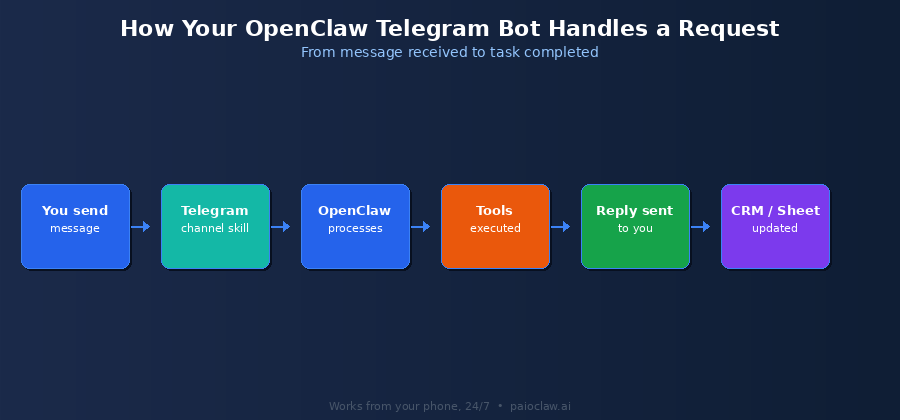
What this guide sets up is different. A Telegram AI bot powered by OpenClaw and hosted on PaioClaw acts as a full command interface for your AI agent. You send it a message from your phone and it reads your emails, logs a CRM contact, runs a web search, checks your calendar, or fires off a scheduled report. It does not wait to be asked a question. It gets work done.
By the end of this guide you will have a Telegram bot that:
- Delivers your morning briefing automatically every day
- Lets you log tasks, contacts, and notes by typing or voice note
- Monitors your inbox and flags urgent emails to you directly
- Runs web research on demand and sends results within a minute
- Notifies you about competitor price changes, lead activity, and pipeline updates
Why Telegram and Not WhatsApp, Slack, or Email?
All four channels are supported in PaioClaw. Telegram is the best starting point for three reasons:
- No business account needed: unlike WhatsApp Business API, you can connect a Telegram bot to your agent with a single token from BotFather. Takes two minutes.
- Bot-native platform: Telegram was built with bots in mind. The API is clean, the message format is flexible, and it supports commands, inline buttons, file attachments, and voice notes without extra configuration.
- Works everywhere: Telegram is available on every device and platform. Your AI agent is accessible from your phone, tablet, or desktop without switching tools.
That said, everything in this guide translates directly to WhatsApp, Slack, or Discord. The only difference is how you create the bot token. The OpenClaw configuration is identical.
What You Will Need
✅ Prerequisites
- A Telegram account (free, any device)
- A PaioClaw account (free to start at paioclaw.ai)
- An OpenAI or Anthropic API key
- Five minutes to complete the BotFather setup
Step-by-Step: Connecting Telegram to Your OpenClaw Agent
Step 1 — Create Your Telegram Bot with BotFather
Open Telegram and search for BotFather (the official Telegram bot management account). Start a conversation and type /newbot. Follow the prompts: give your bot a name and a username ending in _bot. BotFather will return a bot token. Copy this token. You will need it in the next step.
BotFather will give you a token in this format:

1234567890:AAFxxxxxxxxxxxxxxxxxxxxxxxxxxxxxxxxx

Keep this private. Anyone with this token controls your bot.
Step 2 — Create Your Claw in PaioClaw
Go to paioclaw.ai, sign in, and create a new Claw. Name it something like “Personal Assistant” or “Ops Bot”. Choose the persona that fits your primary use case. For general personal productivity, Cooper works well as a starting point.
Step 3 — Connect the Telegram Channel
In your Clawspace dashboard, go to Control > Channels. Click Add Channel and select Telegram. Paste your bot token from BotFather. PaioClaw connects to the Telegram API and your bot is now live.
Test it immediately: open your Telegram app, search for your bot username, and send it a message. It should respond within a few seconds.
Step 4 — Connect Your API Key
Go to AI Models in the sidebar and paste your OpenAI or Anthropic key. This is what powers the reasoning behind every message your bot processes.
Step 5 — Install the Skills You Need
Go to Agent > Skills and install the integrations for your workflows:
- Gmail or Outlook: for inbox monitoring and email actions
- Google Calendar: for schedule queries and event creation
- Web Search: for on-demand research tasks
- HubSpot or your CRM: for contact logging by message
- Google Sheets: for logging notes, tasks, and data by message
💡 All skills are one-click OAuth
Each integration connects via OAuth in a single click. No API keys to configure manually for the services above. PaioClaw’s skill library has been vetted for security, unlike the public ClawHub marketplace.
Step 6 — Configure Your SOUL.md for Telegram Workflows
SOUL.md tells your agent how to handle messages that arrive via Telegram. Here is a working template:
# SOUL.md — Telegram AI Assistant

## Identity

You are my personal AI assistant, accessible via Telegram.

You help me manage my day, capture information, and get things done.

## Telegram Commands

When I send a message starting with one of these words, act accordingly:

log [anything]: Save what follows to my tasks sheet in Google Sheets.

crm [name + company]: Create a contact in HubSpot.

research [topic]: Search the web and summarise in 3-5 bullet points.

email: Summarise my last 10 unread Gmail messages.

calendar: Tell me what is on my calendar today and tomorrow.

## Unstructured Messages

If a message does not match a command, interpret it as a task or question

and respond helpfully. Use your available skills if needed.

## Hard Rules

[PINNED] Never send an email without my explicit approval.

[PINNED] Never delete any data. Read and log only.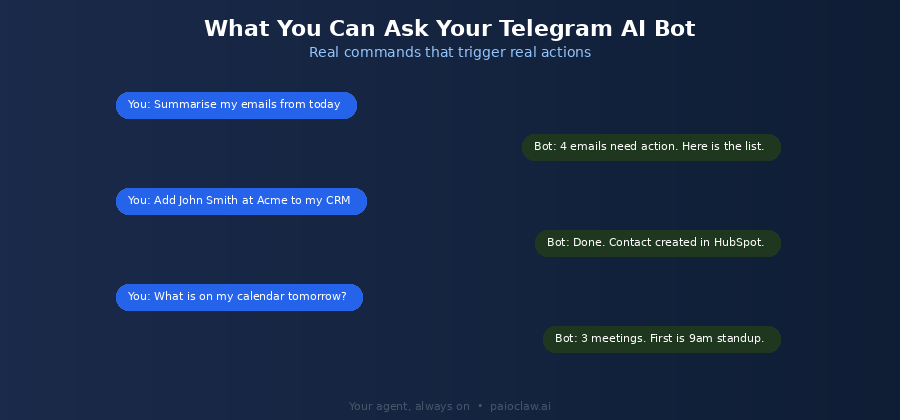
Step 7 — Set Up Your Morning Briefing Cron Job
This is the feature most people find most useful. A cron job that fires every weekday morning and sends a structured briefing to your Telegram before you start work.
Go to Control > Cron Jobs, click New Job, and configure it like this:

Schedule: Every weekday at 7:30 AM

Task: Produce my morning briefing and send it to Telegram.

      Include:

      - Today's calendar events

      - Top 5 unread emails that need attention

      - Any outstanding tasks logged yesterday

      - One sentence weather summary for [your city]

      Keep the total briefing under 200 words.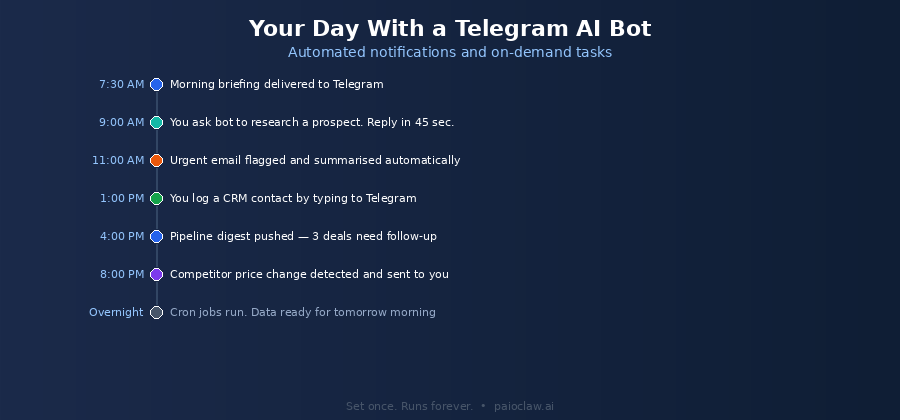
🚀 The morning briefing only works on an always-on agent
A self-hosted OpenClaw instance goes offline when your laptop sleeps. The cron job fires but nothing happens.
PaioClaw keeps your agent running 24/7 in a cloud instance. Your 7:30 AM briefing arrives whether your devices are on or not.
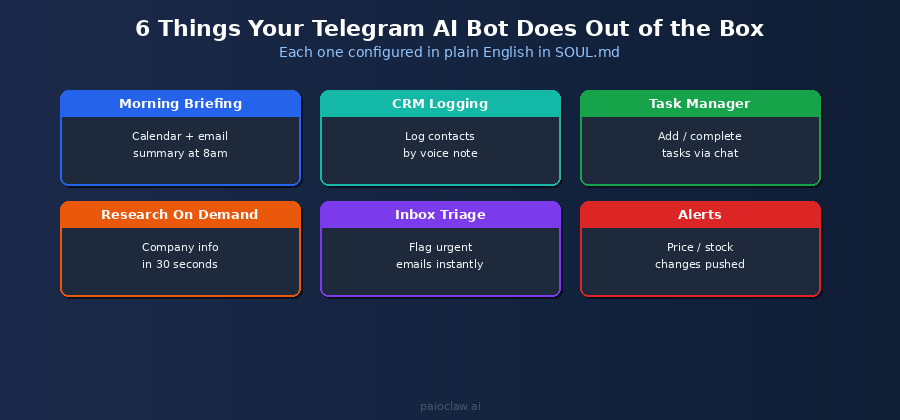
Six Workflows to Set Up on Day One
1. Morning Briefing (Automated)
Configured above. Calendar, emails, tasks, and weather delivered at 7:30 AM every weekday. No action required from you.
2. CRM Logging by Message
After a networking event or a call, type “crm Sarah Johnson, Acme Corp, VP Sales” into Telegram. Your agent creates the contact in HubSpot instantly. No opening a browser, no navigating a form. Done in five seconds from your phone.
3. On-Demand Research
Type “research latest funding rounds in UK fintech this month” and within a minute your agent sends back a structured summary of what it found. Useful before a sales call, for competitive research, or when you need quick context on a topic.
4. Inbox Triage Notifications
Configure your agent to monitor Gmail every two hours and send a Telegram notification if any email requires a same-day response. You stop checking your inbox constantly and instead receive a pushed alert when something actually needs attention.
5. Task Capture by Voice Note
Telegram supports voice notes natively. Your agent transcribes the audio and logs the task or note to your Google Sheet or task manager. Capture ideas, tasks, or reminders hands-free while driving, walking, or between meetings.
6. Competitor and Price Alerts
Configure a daily cron job that checks competitor websites using the Firecrawl skill. If a price changes or a new product launches, your agent sends a Telegram alert with the details. You find out within 24 hours without manually checking anything.
Telegram Bot vs Other Notification Channels
| Channel | Setup Complexity | Bot Support | Free to Use | Works on Phone |
| Telegram | Very low (BotFather token) | Native | Yes | Yes |
| High (Business API approval) | Via Meta API | No | Yes | |
| Slack | Medium (workspace needed) | Good | Limited free tier | Yes |
| Discord | Medium (server needed) | Good | Yes | Yes |
| None | N/A | Yes | Yes — but noisy |
💡 You can run multiple channels simultaneously
PaioClaw supports Telegram, WhatsApp, Slack, and Discord connected to the same agent at the same time. Send a task from Telegram in the morning, get a pipeline alert in Slack at noon, receive a Telegram briefing in the evening. One agent, all your surfaces.
Frequently Asked Questions
Do I need a Telegram Business account or any paid Telegram plan?
No. The standard free Telegram account is all you need. BotFather is a free Telegram service. Creating and connecting a bot costs nothing. You only pay for your PaioClaw plan and your AI provider’s API usage.
Is my Telegram conversation with the bot private?
Messages between you and your bot travel through Telegram’s servers in the normal way. The content of your messages is processed by your AI provider (OpenAI or Anthropic) via your own API key. PaioClaw handles the routing but does not store or analyse message content for its own purposes.
Can I use the same bot token with multiple Claws?
No. Each Telegram bot token connects to one Claw. If you want separate bots for different workflows (a personal assistant bot and a work bot, for example), create two Claws in PaioClaw and two bots in BotFather, each with their own token.
What happens if I send a message my bot does not understand?
Because the agent uses a reasoning model rather than keyword matching, it handles unrecognised inputs gracefully. It interprets the intent and responds helpfully, asking a clarifying question if needed. You do not get a generic “command not recognised” error.
Can the bot send me proactive messages, not just respond to my messages?
Yes. Cron jobs and skill-triggered notifications push messages to your Telegram from the agent side. Your morning briefing, inbox alerts, price change notifications, and pipeline digests are all outbound messages the agent initiates without you sending anything first.
Can I set this up for my team instead of just for myself?
Yes. Create a Telegram group, add your bot to the group, and configure the agent to respond to messages in that group. Each team member can send tasks, queries, or commands to the shared agent. For team-wide deployments, the Smart or Genius plan gives you the credit allocation and skill access needed.